Quick View
Features
Support Function
- Reverse Text
- Word Counter
- Create Palindrome String
- Upside Down Text
- Case Converter:
- Sentence case
- Lower case
- Upper Case
- Capitalize case
- Decapitalize case
- Camel case
- Kebab case
- Snake case
- Remove Duplicate Lines
- Sort Lines:
- Sort Alphabetically
- Sort By Length
- Random
- Reverse
- Calculate String Length
- Occurrence Counter
- Find And Replace Text
- Add Prefix/Suffix To Lines
- Random Line Picker
- Strip HTML Tags
- Binary Text Converter
- Hex Text Converter
- Random String Generator
- Remove Accents
- Remove Empty Lines
- Remove Line Breaks
- Remove Extra Spaces
- Remove Lines Containing
- Base64 Encode & Decode
- URL Encode & Decode
- Escape & Unscape HTML
Folder Structure
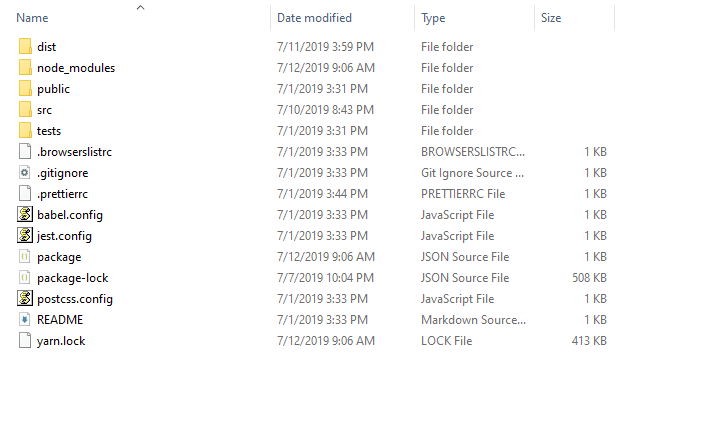
- dist: The folder where the build is located, you will upload the files to your hosting folder, it contains packaged and optimized html, js, css files.
- node_modules: The folder that contains libraries downloaded from npm, you mustn't change anything in this folder.
- public: Any static assets you don’t want to be run through Webpack when we build our project like index.html, favicon, robots.txt,...
- src:
- components: includes the components, or building blocks.
- views: where the file will be stored will be built into pages
Layouts
Take a look about what Vue component is: Components
This application uses Vuetify framework, keep the tab Component API Overview to learn more about components that will be mentioned below as well as other pages.
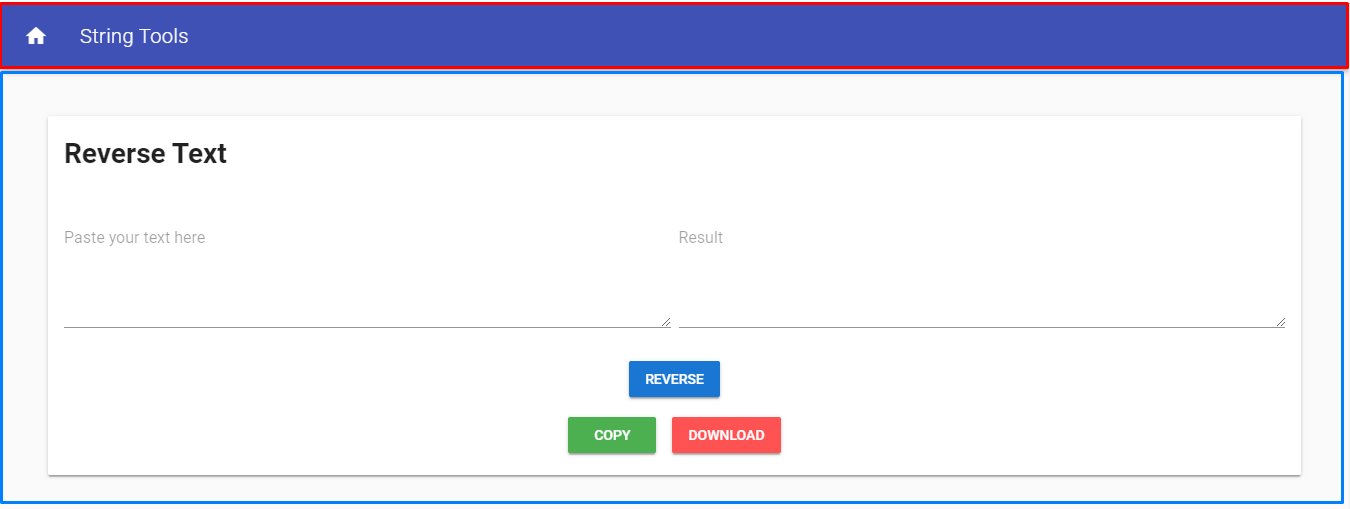
Layouts are divided into 2 parts: Toolbar (red block) and Content (blue block).
Open file App.vue inside "src" directory:
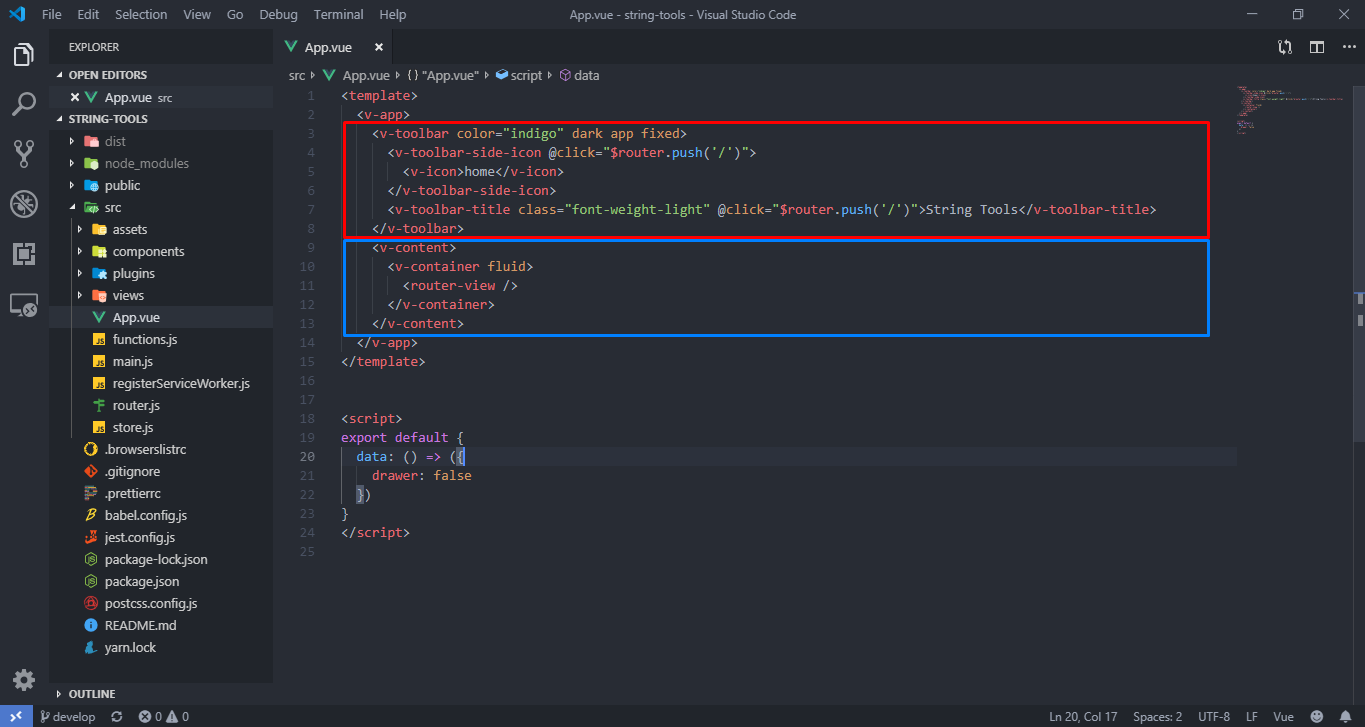
All elements inside v-toolbar tag and v-content tag match the toolbar and content (the content contains data of the page index and other pages which in "src/views" directory, we'll talk about it later).
Take a look at Toolbar component here: Toolbar Component
For simplicity, you can:
- Change the color of the toolbar by changing the "color" attribute. (List of supported colors here)
- Change the icon of the toolbar by changing the value inside v-icon tag. (List of supported icons here)
- Change the title of the toolbar by changing the value inside v-toolbar-title tag